LEARN YOUR WAY AROUND
A little help for your solar scene.
Start with a scenario, see where the shade falls, then explore energy and bill savings. These tutorials explain the model and its limits; they are not instructions for installing electrical equipment.
Build your first scene
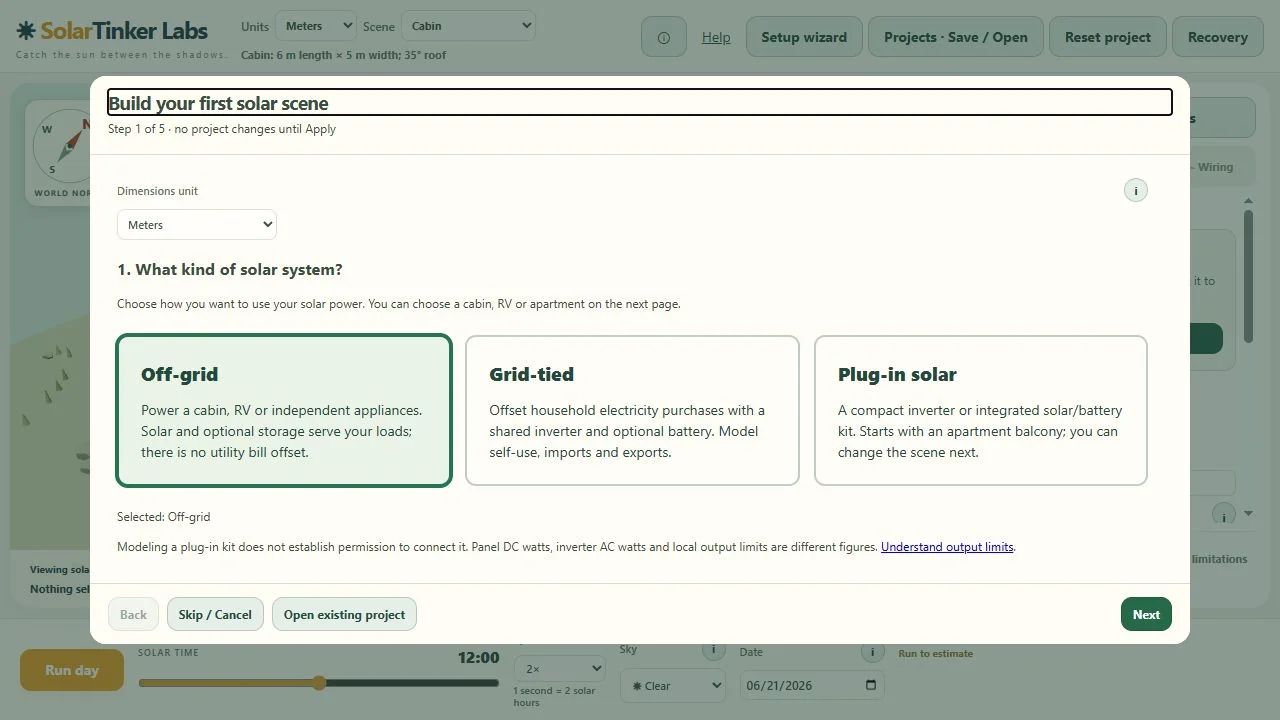
- Open the 3D Viewer. Choose Off-grid, Grid-tied or Plug-in solar on the first wizard page.
- Choose your building, units, dimensions, approximate location and panel count. Plug-in starts with a balcony, but the scene selector also offers Cabin and RV.
- Choose solar inputs and equipment ratings. Use Suggest connections, then inspect the connections and warnings. Unconnected panels produce no output.
- Enter an appliance load or a daily schedule. A household baseline is continuous and is added to this appliance, so avoid counting the same use twice.
- Review, then Apply reviewed setup. Place trees and run a day. Cancel leaves the current project unchanged.
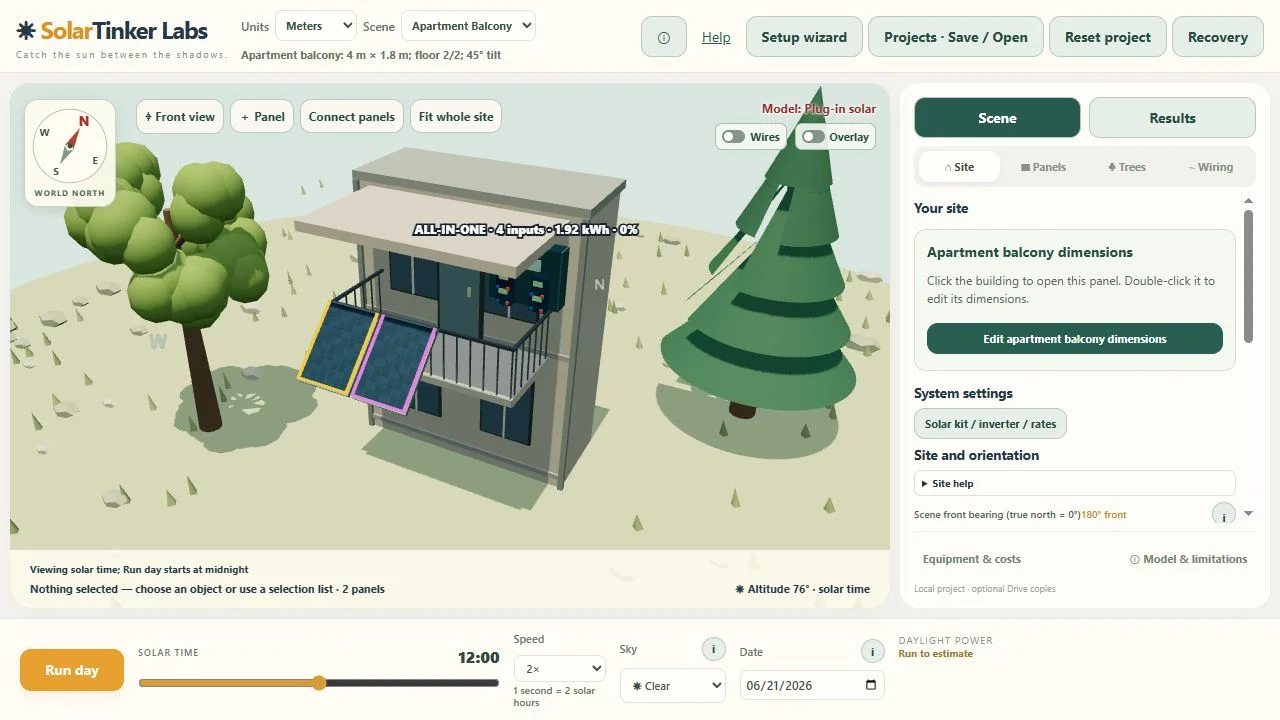
One box can contain several solar inputs
An inverter converts panel DC power to household AC power. An MPPT is the part that tracks the best operating point of connected panels. An integrated kit can contain an inverter, several independent MPPT inputs and a battery in the same enclosure. Four inputs do not mean four times the inverter output.
DC watts→Independent solar inputs
MPPTs inside the kit→Shared inverter
AC output ceiling→Household demand
Optional storage receives surplus DC energy and later supplies household demand through that same inverter ceiling. The modeled battery does not charge from the grid or export stored energy.
Try the STREAM Ultra reference
- Choose Plug-in solar, then a scene and panels that fit it.
- On Solar inputs, choose EcoFlow STREAM Ultra · US grid-feed example. It fills four inputs, 1.92 kWh storage and an 800 W shared grid-terminal AC ceiling. Each input has a 500 W reference limit, a 15–60 V tracking range, 60 V maximum input voltage, 14 A operating-current limit and 20 A short-circuit limit.
- Use one panel per input. Unused inputs are fine. Review the exact panel voltage/current, including cold-weather limits, against the exact regional device documentation.
- Review battery capacity, load and costs. Integrated inputs and battery are included under the inverter in the cost worksheet so the kit price is counted once.
This is a limited reference model of one US unit’s direct PV/storage/household feed-in path. It excludes an AC-coupled microinverter, AC charging, direct appliance/bypass sockets and coordinated extra units. The 96% inverter and 95% battery efficiencies are simulation assumptions, not measured STREAM performance. Other regional versions differ. EcoFlow US specifications · US-language model manual.
For a different kit, choose generic/current ratings and edit each solar input, the shared inverter and battery settings. Battery kWh is the useful capacity entry here; the advanced Ah value is an internal 48 V equivalent, not the device’s actual battery voltage.
Panel watts, inverter watts and regional limits
Panel DC watts are the sum of the panels’ reference Vmp × Imp ratings. Shared AC watts cap combined solar and battery delivery through the inverter. The planning ceiling is a separate value you select for your scenario. A lower software setting does not certify an actual device or installation.
Connecticut reference
Public Act 26-127 §§9–10 took effect October 1, 2026. The qualifying-device definition includes a 1,200 W maximum output, a 120 V connection, non-permanent attachment, and certification, code and outage-protection conditions. It limits use to one qualifying device per meter. The law also calls for a warning about charges for surplus generation unless the meter supports net metering.
Select Connecticut, US in System settings to use the 1,200 W planning ceiling. SolarTinker checks the entered AC limit and flags panel nameplate totals above 1,200 W for review. It does not determine whether DC oversizing qualifies, verify certification, or model a meter charging for surplus generation. Do not interpret an 800 W simulation result as proof that an oversized or uncertified kit is eligible. Official Connecticut public-act summary, §§9–10.
Other U.S. states and Europe
There is no single setting here that establishes permission across these regions. Choose Custom / check local rules, enter the applicable output ceiling, and use the exact regional hardware ratings. Confirm local requirements and meter behavior before relying on savings. This starter guide is not a complete jurisdiction database. Regional references checked October 24, 2026.
Cabin, RV and apartment balcony
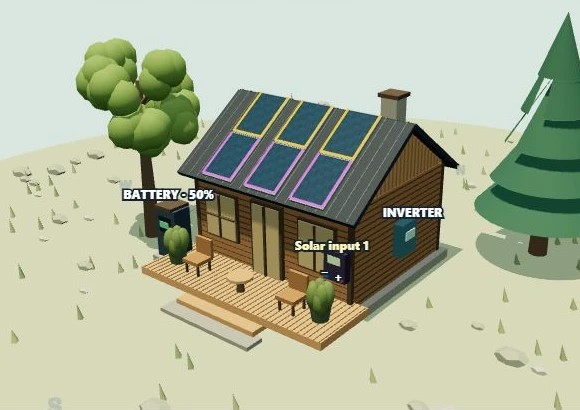
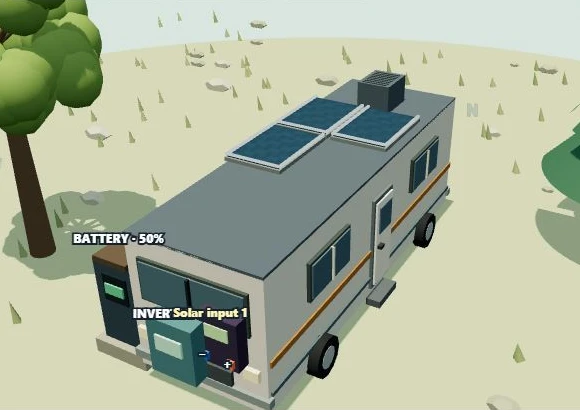
Use Scene → Site → Edit dimensions to resize. Existing placements are retained where possible; review any proposed rearrangement. Scene replacement creates new panels and clears their wiring, so review before applying.
Balcony panels hang from the outer top rail. At 90° they are vertical; at 45° the lower edge projects outward while the top edge stays at the rail. You can slide panels across the rail. Under Panels → Position & orientation, enter any tilt from 45° to 90° and choose Review railing tilt. It changes all panels on the shared railing plane; the surface selector has only one surface in this scene. Floor 1 means ground level. The upper slab, façade and trees can shade panels; railing mounting, wind loading and structural adequacy are not engineering checks in this model.
Connect panels without guessing the topology
Open Connect panels or use the wizard’s planner. Drag a panel tile into a lane, or select the tile and use Place selected here. Moving a tile between input groups changes its destination.
A lane is a series string: voltages add. Several lanes on one MPPT are parallel: currents add. Independent inputs track separately. The plug-in model supports one panel per independent input and no external optimizers. It intentionally excludes unsupported arrangements from output rather than silently treating them as valid.
Compatibility checks compare modeled voltage and current with your entered limits. Unknown short-circuit ratings or missing cold-voltage data remain incomplete checks. Operating-current clipping does not establish short-circuit safety. Use exact datasheets and qualified design review for actual wiring.
Choose a location and study shade
- Choose map / nearby city, search a city such as Austin, Texas, and select the correct result.
- Drag the map to pan; scroll, pinch, or use Zoom in/out. Click to place the marker, then choose Use this latitude. Keyboard arrows move the marker; plus and minus zoom.
- Select a tree, then drag its trunk. Edit height, crown diameter, density and foliage for your scenario.
- Move solar time and compare dates. Run a day to retain an energy curve; changing the viewing time afterward does not rewrite that run.
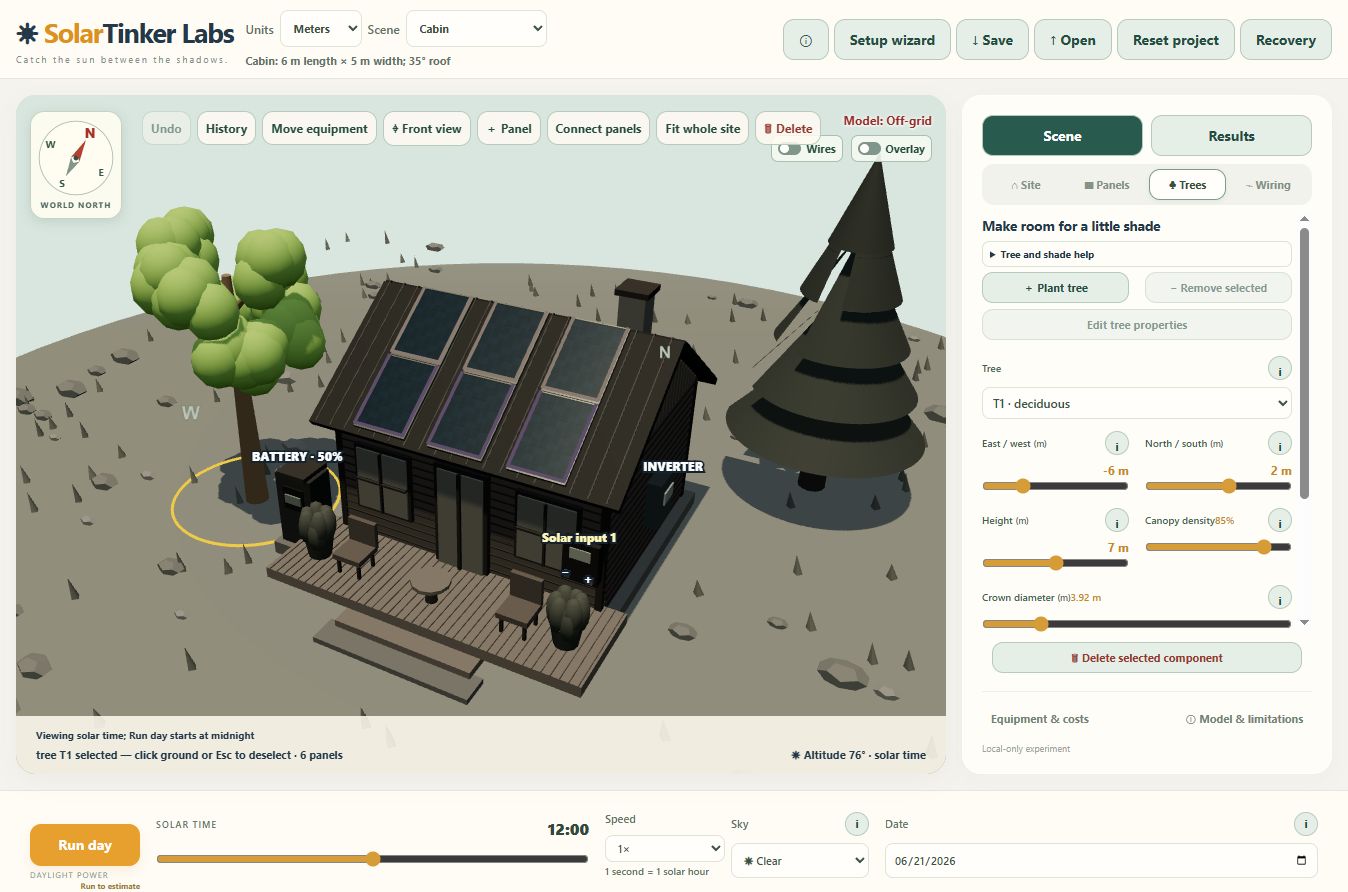
The simulation uses solar time, not local clock time or daylight-saving time. Nearby-city latitude is enough for this model; it does not use local historical weather. A clear-sky scenario is not an annual production forecast.
Enter your rate and understand payback
- Open Results → Electricity rate & savings. Enter the variable electricity purchase rate in USD per kWh. For 25 cents, enter 0.25.
- Export credit is separate. Select the appropriate export policy in System settings; zero credit is a valid scenario. Fixed fees are excluded.
- Estimate a year, then adjust rates with Update rates & savings. The same energy totals are repriced, so rate comparisons do not require another solar run.
- Enter equipment prices and installation, mounting and cabling allowances under Scene → Equipment & costs. Blank means unknown; enter 0 only for a known zero or explicitly excluded cost.
Simple payback is configured cost divided by annual solar-derived savings. It is unavailable for off-grid, incomplete costs or nonpositive savings. Initial stored battery energy is excluded from solar savings. Ending stored energy earns no bill credit. Financing, degradation, replacements, incentives, tax, shipping and future tariff changes are outside this simple calculation.
Choose equipment and inspect its product information
- Open Scene → Equipment & costs. Choose a panel, inverter, battery or active optimizer. Choose Browse all equipment to inspect the library without changing anything.
- Select a product. Its card links to the vendor and contains About this model & source notes. Product photos help confirm the selected model. If an image cannot load, the product link and specifications remain available.
- Review the application scope. Complete panel presets apply electrical ratings and dimensions. Entries marked cost/reference assign a name and cost while retaining your current simulation settings. They are not verified named-device energy models.
- Review the draft and choose Save changes. Cancel keeps the original scene. An applied product reference remains visible in its properties.
Preliminary Signature Solar prices were recorded October 24, 2026. Pallet prices are divided into allocated panel costs for modeling, but the seller may require a complete pallet or minimum order. Include your actual purchase quantity, freight, tax and installation in your budget. Unknown prices remain blank. See the catalog readiness notes for supported fields and missing mappings.
Monthly graphs, tables and a printable report
Choose a year and Estimate year. The model repeats one representative solar day per month for the actual number of calendar days, carrying battery charge between days. It uses your saved load program and annual weather choice. Choose one sky all year, or a clear/overcast mix. Mixed mode calculates both profiles each month and spreads whole overcast days evenly through the year; battery charge carries across that assumed sequence. This is not a forecast or local seasonal cloud data. Playback overrides are not annual inputs.
Switch between monthly AC energy and solar-derived savings. Jump to monthly table scrolls and focuses the exact values. Before downloading the printable report, choose energy, savings, both or table only. Open the downloaded HTML and use your browser’s Print command to print or save a PDF. CSV includes monthly values and assumptions.
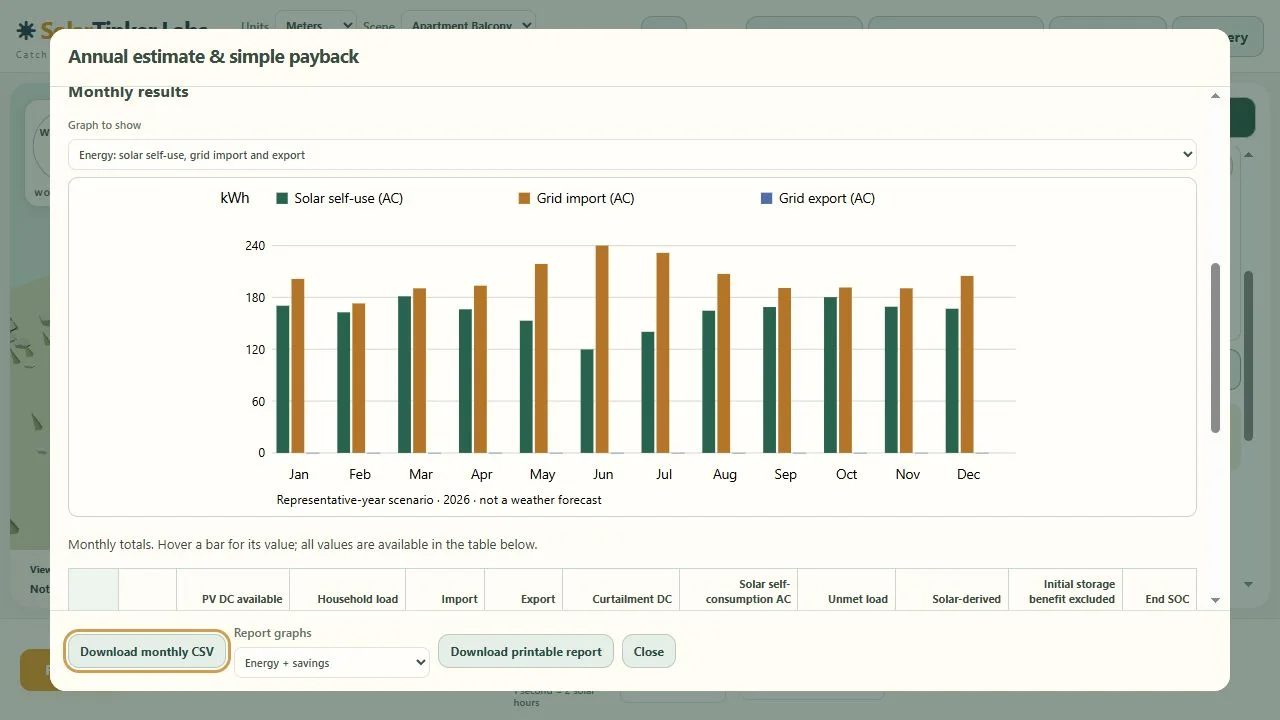
Changing physical inputs or the scenario invalidates old results. Wait for a completed estimate; cancelled or partial years are not presented as a complete annual result.
After running a day, scrub the solar-time slider to move the vertical cursor on the footer power curve. The curve and daily energy totals stay fixed until you change the physical scenario. The curve shows modeled controller output after shade and electrical limits; the marker reports the nearest recorded sample, not a new measurement.
Save, reopen and recover work
Projects · Save / Open offers a local JSON download and optional Google Drive connection. Local files work without sign-in. Google copies use private app storage; each save creates a new copy. Connect the same account to reopen copies in SolarTinker on another device. Disconnect clears the current connection; it does not delete saved copies.
Keep local backups. Opening a project replaces the current scene; save it first if you want to keep both. Recovery provides available session undo/history actions, but session recovery is not a permanent backup. Version 20 projects also preserve the total-budget choice and annual weather mix. Older viewers cannot open newly saved projects; this viewer still opens versions 1–19.
First estimate: an east-facing balcony
On the home page, choose Is balcony solar worth it?, or choose Start a balcony estimate in the setup wizard. You do not need to choose solar input channels or wire panels to get started.
- Choose a nearby city on the map or enter latitude. Set the balcony direction, measured railing width, floor and building height. East receives mainly morning direct sunlight.
- Start with one or two illustrative 400 W panels. Choose vertical hanging or outward tilt. Select No tree shade if appropriate. The building and overhang remain in the model.
- Enter monthly kWh and the variable electricity rate from your bill. The shortcut spreads usage evenly across a 30-day month and clears the demonstration appliance load. It may overstate daytime use if you consume mainly at night; refine the load schedule in the full settings before making a purchase decision.
- Enter the share of days you want to assume overcast and an all-in budget. One third is about 33.33%. Budget includes tax, shipping, mounting, cables and installation, not just panels.
- Review, then choose Apply & estimate year. Both panels are connected automatically to separate inputs inside one generic 800 W inverter model. No battery or export credit is assumed. Use Recovery → Undo last setup to restore the previous scene.
For the illustrative Hartford scenario at latitude 41.7637°, two east-facing vertical 400 W panels, a 4 m railing, floor 2 of 4, no trees, 417 W constant household usage, one-third overcast days and $0.15/kWh, the 2026 scenario gives approximately $115/year savings and 10.4 years simple payback on $1,200. This is a modeled example, not a product yield promise. At $0.30/kWh with the same energy and budget, the simple payback is about 5.2 years. Actual daily usage, shading, weather, costs and applicable meter rules can change the outcome.
Simple payback is installed cost divided by annual modeled savings. It is not a full lifetime return calculation: financing, replacement, degradation, maintenance, incentives and future rate changes are not included.
Compare before buying
Keep up to four completed results in Compare estimates in this visit. Each keeps its own assumptions; changing the active budget does not rewrite earlier results. Download each report for a permanent copy. The comparison list itself lasts only for the current page visit.
Open Edit weather, budget, electricity rates & year above the results. Changing only the budget or rate recalculates payback without redoing solar output. Changing weather requires another annual estimate. The viewer’s sky selector still controls the single-day scene.
From a model to a shopping list
The current catalog does not yet include a verified, priced plug-in inverter/battery kit. Generic inputs and the STREAM reference are simulation starting points, not ready-to-buy complete systems. Use Equipment & costs to inspect products, photos, physical dimensions, seller links and minimum orders. Ask the vendor to confirm the exact region/model, panel input compatibility and complete installed price before replacing assumptions.
Allocated per-panel cost can be much lower than the actual checkout cost. For example, the Boviet 540 W listing showed $167.40 each with a 10-panel minimum on October 24, 2026: at least $1,674 before tax and shipping. Product cards now show that purchase floor. The preliminary intake's minimum of one has been corrected for new selections; old saved assignments keep their historical prices.
Large panels may not fit your railing. The preview tries a 90° rotation and rearrangement while preserving connections. It lists any movements before Apply. If it cannot find a fit, use fewer/smaller panels or correct your measured surface dimensions; do not enlarge the scene just to force a fit. The model uses a 1.90 m maximum railing-panel drop and does not assess mounting strength.
Half-cut cells, bypass diodes and shaded panels
These are separate properties. A half-cut cell layout describes cell wiring; bypass diodes provide paths around protected cell groups. A panel's number of cells or marketing label does not fully specify its internal circuit.
Current SolarTinker model: every panel uses three equal series cell sections, sampled at 12 positions per section. The project-wide Model bypass diodes on all panels switch enables one modeled diode per section (an illustrative 0.45 V forward-drop cap). With it off, the model uses a weakest-section current limit. It does not calculate reverse breakdown, hot spots or damage.
What product selection changes: supported electrical ratings and physical dimensions. The vendor's bypass count and cell-layout notes appear separately in the product card. Those facts do not change the circuit model. Half-cut parallel paths, alternative diode groupings, shingled-cell layouts and exact junction-box routing are not currently represented.
Use this version to explore broad shade and orientation effects. Do not interpret the generic model as a validated comparison of one manufacturer's half-cut shade performance against another's. For a future detailed model, request an internal cell/string connection diagram, diode count and protected groups, panel orientation, and measured partial-shading I–V/P–V curves for the exact model/revision. “Half-cut” or “three diodes” alone is insufficient to establish that topology.
Common questions
Why does a 400 W panel show less than 400 W?
400 W is a reference nameplate rating. Sun angle, shade, sky choice, wiring limits and conversion losses affect modeled output. An unconnected panel produces zero.
Can I connect four panels to one input?
The plug-in path only models one panel per independent input. Four panels may connect to four inputs in the same enclosure. Other series/parallel arrangements require suitable equipment and are explored through the general grid/off-grid paths, with electrical-limit review.
Why does storage not eliminate all grid imports?
The battery may be empty, charging may be limited, or demand may exceed the shared inverter ceiling. Storage capacity in kWh and output power in W are different constraints.
Why are my annual savings surprisingly high or low?
Check the purchase rate, export policy, appliance schedule, household baseline, selected sky, shading and missing equipment costs. SolarTinker is an educational scenario model, not a utility tariff engine or calibrated weather forecast.
Can I model multiple STREAM units and their direct outlets?
Not as a faithful product system yet. The current reference covers one unit’s direct solar/storage/grid-feed path. Do not add outlet ratings to the shared inverter ceiling or assume separate input channels are extra inverter units.
What if maps or Google connection are unavailable?
Enter latitude manually and save a local project file. These core workflows do not require either service. Read how connected services handle requests.
Missing a topic? Send a scenario description to [email protected].